Enabling Purchase Cards
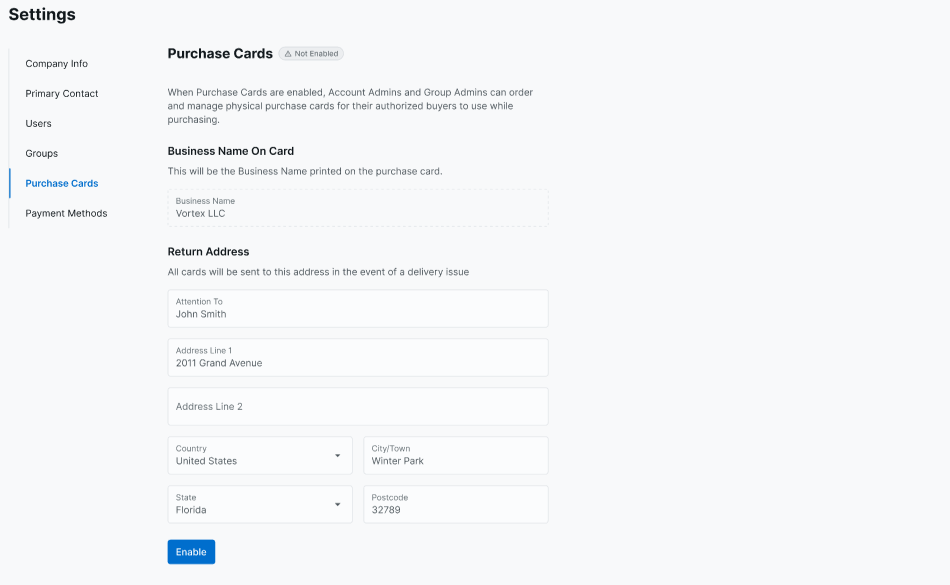
Before any cards can be created, an Account Admin must enable the Purchase Cards feature for the customer account.
- Navigate to the Purchase Cards page in the TreviPay Customer Portal.
- If Purchase Cards have not yet been enabled, the page displays the current status as "Not Enabled" and an Enable button.
- The Admin must provide a Return Address before enabling — this is the address to which cards will be returned in the event of a delivery issue. The business name printed on the cards will also be displayed for confirmation.
- Select Enable. A confirmation message will appear, and the Purchase Cards table view will load. Once enabled, the Return Address can be updated at any time from the Settings tab on the Purchase Cards page. To disable Purchase Cards, all active cards on the account must be terminated first. The Disable button remains inactive until no active cards remain.
Viewing Card Details
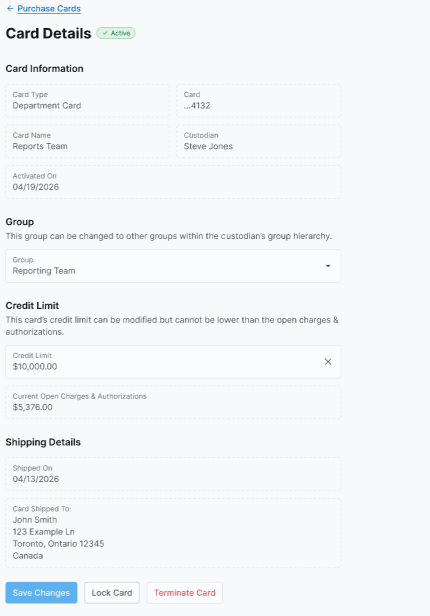
To view or manage a specific card, select the pencil icon on the card's row in the Active cards table. This opens the Card Details page, which displays:
- Card Information (read-only): card type, masked card number, card name, custodian name (Department Cards), and activation date.
- Group (Department Cards only): the group the card is assigned to. Account Admins, Group Admins, and Support users can change the assigned group to any group within the custodian's hierarchy.
- Credit Limit: the card-level credit limit. Account Admins, Group Admins, and Support users can update this value. The limit cannot be set below the card's current open charges and authorizations, or above the custodian's ICL (Department Cards) or the customer's approved credit limit (Individual Cards).
- Shipping Details (physical cards only, read-only): shipped-on date, recipient name, and delivery address.
The Card Details page also provides access to the following actions:
- Save Changes — saves any edits made to the Group or Credit Limit fields. Enabled only when a change has been made.
- Lock Card / Unlock Card — temporarily locks or unlocks the card. Available to Account Admins, Group Admins, Purchasers, and Support.
- Terminate Card — permanently terminates the card. A reason must be selected. Available to Account Admins, Group Admins, and Support only.

Managing Cards from the Purchasing Page
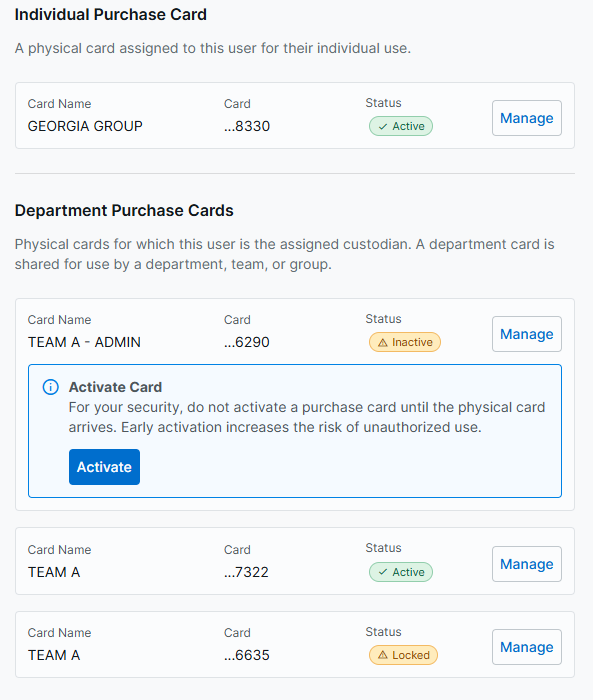
Purchase card details are also surfaced on a user's Edit User / Purchasing page and Profile / Purchasing page, making it easy to view and manage a buyer's cards in context alongside their other purchasing settings.
- Admins, Group Admins, and Support will always see the Individual Purchase Card section and — when Department Cards are enabled — the Department Purchase Card section, regardless of whether a card exists. If no card has been created yet, a Create Card button is shown. If a card exists, the card name, masked card number, status, and a Manage button are displayed. Selecting Manage navigates to the Card Details page.
- Purchasers will see their Individual and/or Department Purchase Card sections on their Profile / Purchasing page only after a card has been assigned to them. Purchasers can view their card details and select Manage to navigate to the Card Details page, but cannot create or terminate cards.