Cards can be created from two locations:
- The Purchase Cards page — using the Create New Card button at the top of the page.
- A user's Purchasing page — using the Create Card button within the Individual Purchase Card or Department Purchase Card section on the Edit User / Purchasing or Profile / Purchasing page.

Choosing a Card Type
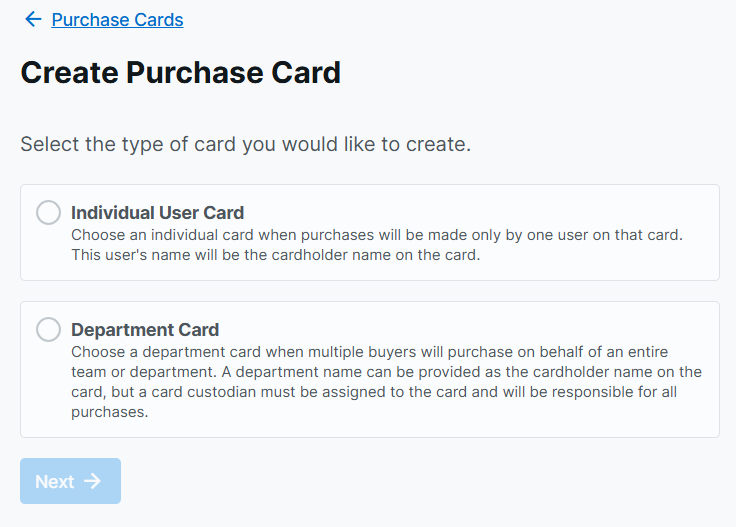
If Department Cards are enabled on your program, the first step of the card creation workflow will prompt you to select a card type:
- Individual User Card — choose this when the card will be used exclusively by one person. The cardholder's name will be printed on the card.
- Department Card — choose this when the card will be shared across a team or department. A department or team name will be used as the cardholder name, and a card custodian must be assigned. If Department Cards are not enabled, the workflow will proceed directly to the Individual card creation steps.
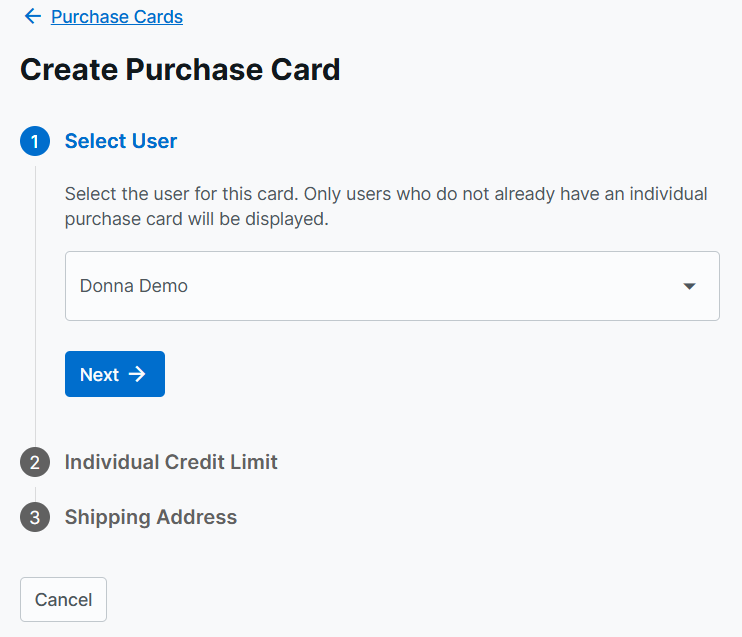
Creating an Individual Card
- Select User — search for and select the buyer who will be assigned the card. Only users without an existing individual card will appear in the list. For Open Loop programs, a date of birth for the cardholder is also required at this step.
- Individual Credit Limit — optionally set or update the user's individual credit limit. This caps the total purchasing power for that buyer across their TreviPay account.
- Shipping Address (physical cards only) — provide the address where the card should be delivered. The "Attention To" field is pre-populated with the cardholder's name and can be modified. Select Create Card to submit.
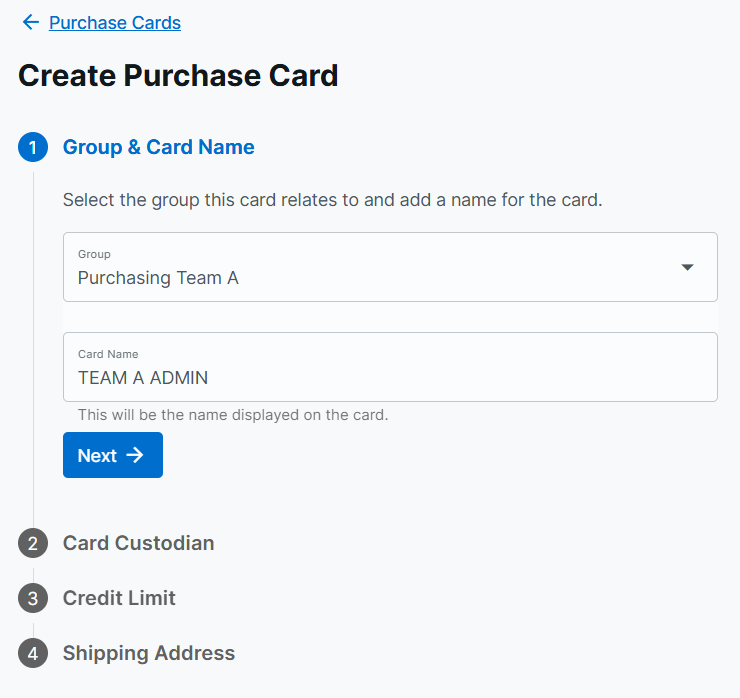
Creating a Department Card
- Group & Card Name — select the group this card is associated with, and enter a name for the card (up to 26 characters). This name will be printed on the card as the cardholder's name.
- Card Custodian — search for and select the user who will be responsible for this card. See the Department Cards guide for full details on custodian selection and responsibilities.
- Credit Limit (optional) — optionally set a credit limit for this card. See the Department Cards guide for how limits are calculated and enforced.
- Shipping Address (physical cards only) — provide the delivery address. The "Attention To" field is pre-populated with the custodian's name and can be modified. Select Create Card to submit. The assigned custodian will receive an email notification with the card details.
Things to Know
- Physical cards can take 7-10 business days to arrive
- Purchase cards can only be ordered for Account Admins, Group Admins, and Purchaser roles
- Payers do not have permissions to purchase on the account
- Purchase cards can only be ordered by Account Admins and Group Admins
- Account Admin is the only role that can order their own purchase card